Diving into Jenkins X
[WIP] Overview
Jenkins X is an opinionated Jenkins setup meant to support GitOps. It results in a container based infrastructure that provides an environment per branch. This should enable a more rapid development flow while building applications.
References
TL;DR Lessons
- Make sure you run the install task from a git repo. It failed for me with odd errors, but was due to the script expecting to find a git repo in the current directory.
- Be sure to understand how to remove services created and manage billing. In AWS the setup script leverages CloudFormation so all resources created will be easy to delete.
- Found
Install
You’ll use the CLI tool to orchestrate the setup and interact with the platform. I’m using a Mac, so I can leverage the Homebrew install method…
brew tap jenkins-x/jx
brew install jx

# also required on osx (should not be, may fixed at some point)
brew install kubernetes-cli
brew link --overwrite kubernetes-cli
The jx CLI provides us with tools to create and manage the cluster and other operations flow.
Hosting
This can be hosted in various ways. You can find a good list of tutorials at the Jenkins X Getting Started page.
This walk through dives into an AWS EKS install. Going with EKS based on reading this review and comparing two options for setting up and running kubernetes in the AWS world.
Hint: It’s a good idea to setup and use a non-root AWS user for this. You can create a user in IAM and associate the Admin
permission. I’m storing my admin users info in the ~/.aws/credentials file under a profile named jx.
Setup
Use jx to create the cluster and install Jenkins X.
jx create cluster eks --cluster-name=demo-cluster
The script downloads binaries (if not installed) to the ~/.jx/bin/ directory. These are requirements used by jx to
interact with the cloud services.
Hint: Under the hood, this leverages your ~/.aws/credentials via eksctl and aws-cli
Problem: eksctl Binary not found
The $PATH on my workstation was not updated for zsh when jx installed
them, resulting in binary not found errors. To fix this I needed to add ~/.jx/bin to my $PATH.
Cluster created
I was able to see the cluster and all the services created in the AWS Console / CloudFormation.
“demo-cluster” was the name of the stack it created per the jx command.
Up to this point, it took about 12 minutes for the cluster to create and install Jenkins X.
Problem: Region us-west-2 requires verification
This is an AWS platform specific issue tied to my account being newer. I simply had to wait a short time for the account to be activated for the region. No action was required, and an email showed up within 10 mins noting the process was complete.
I highlight it here because it’s nice to know that these issues look easy to debug even when using the multiple layers
of abstraction through the jx CLI.
Tear down
I needed to leave for an appointment and didn’t want to be charged for the infrastructure sitting unused. It’s really
easy to tear down the whole stack with one jx command.
jx delete eks demo-cluster
Problem: Errors shutting down some network interfaces
For some reason, if I tried to shut the stack down after setting up IP / DNS items (seen later) AWS CloudFormation would fail when trying to delete network interfaces. I had to manually remove some of the virtual components.
For me it was tied to network interfaces used by a Load Balancer that did not get removed. Going to the EC2 page and removing the one used by the trouble interfaces fixed the problem.
Second pass start
Set the region my stack was going to created in, and got to work again… this time trying the cluster creation as a
separate step to the install of Jenkins with the --skip-installation=true flag.
aws configure set region us-east-2
jx create cluster eks --cluster-name=pourover-demo --skip-installation=false
Git
I need to review what the best setup for this is. The install process asks for Git info, which it will use as the user it interacts with the repo as. I’m thinking this is best to be a shared user, but I need to verify this after testing.
Wildcard Domain
The docs reference the use of nip.io if you don’t want to setup your own domain yet. It wasn’t clear initially but was simple enough.
When asked Would you like to register a wildcard DNS ALIAS to point at this ELB address? Answer No and jx will use the IP address with nip.io, so you can use the service without a custom domain name initially.
Problem: Out-dated kubectl
error: object does not implement the Object interfaces'
This Stack Exchange page indicates it could be due to an old install kubernetes cli.
Docker for Mac comes with an outdated kubectl - it’s missing the delete --wait flag. This is required by jx processes.
I worked around this via installing the package with Homebrew, then overwriting the Docker for Mac bin reference.
brew install kubernetes-cli
brew link --overwrite kubernetes-cli
WIP - Overall Process
The general flow was sort of buggy, it failed a few times with no clear reason. I was not sure if it was a problem with local dependencies (that happened) or a bug with jx interacting with AWS (that happened too) or if I just didn’t use a command correctly (also happened.)
Walkthrough
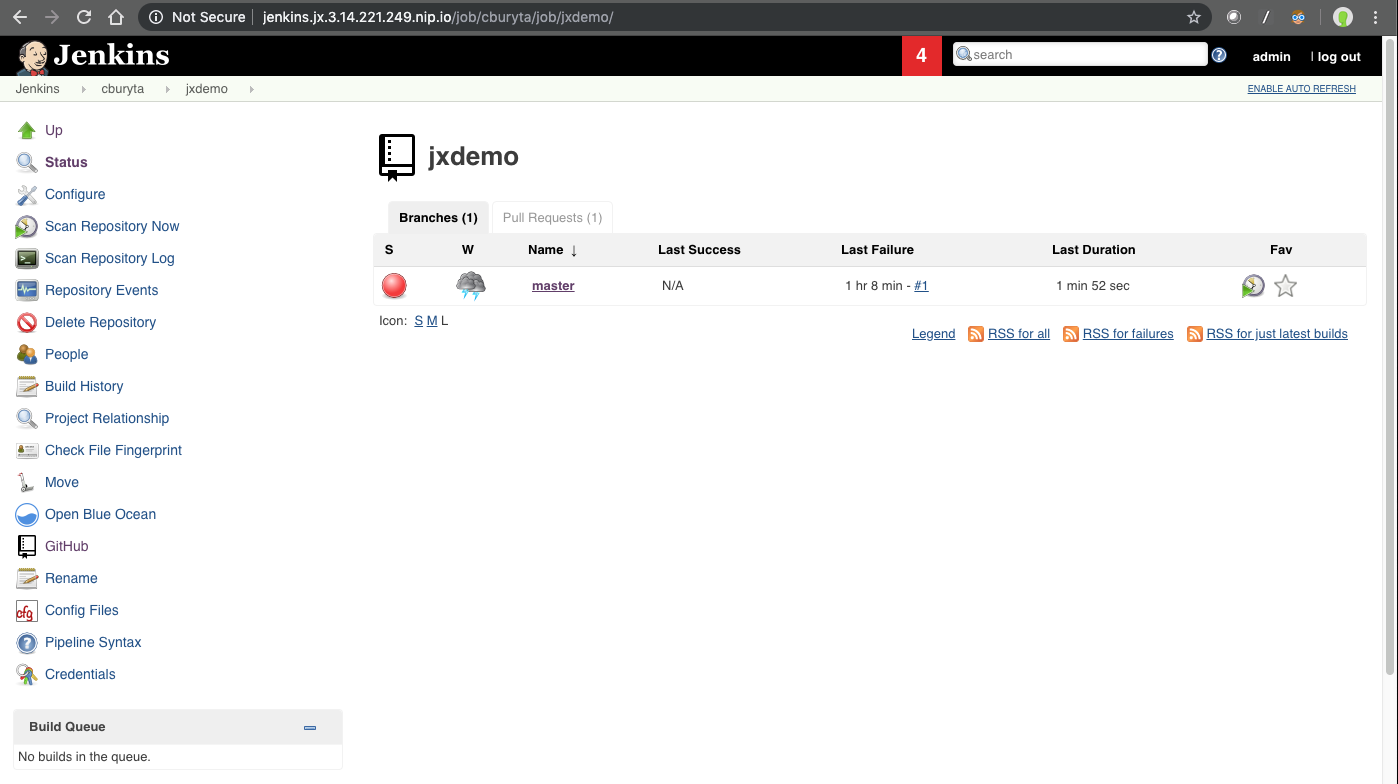
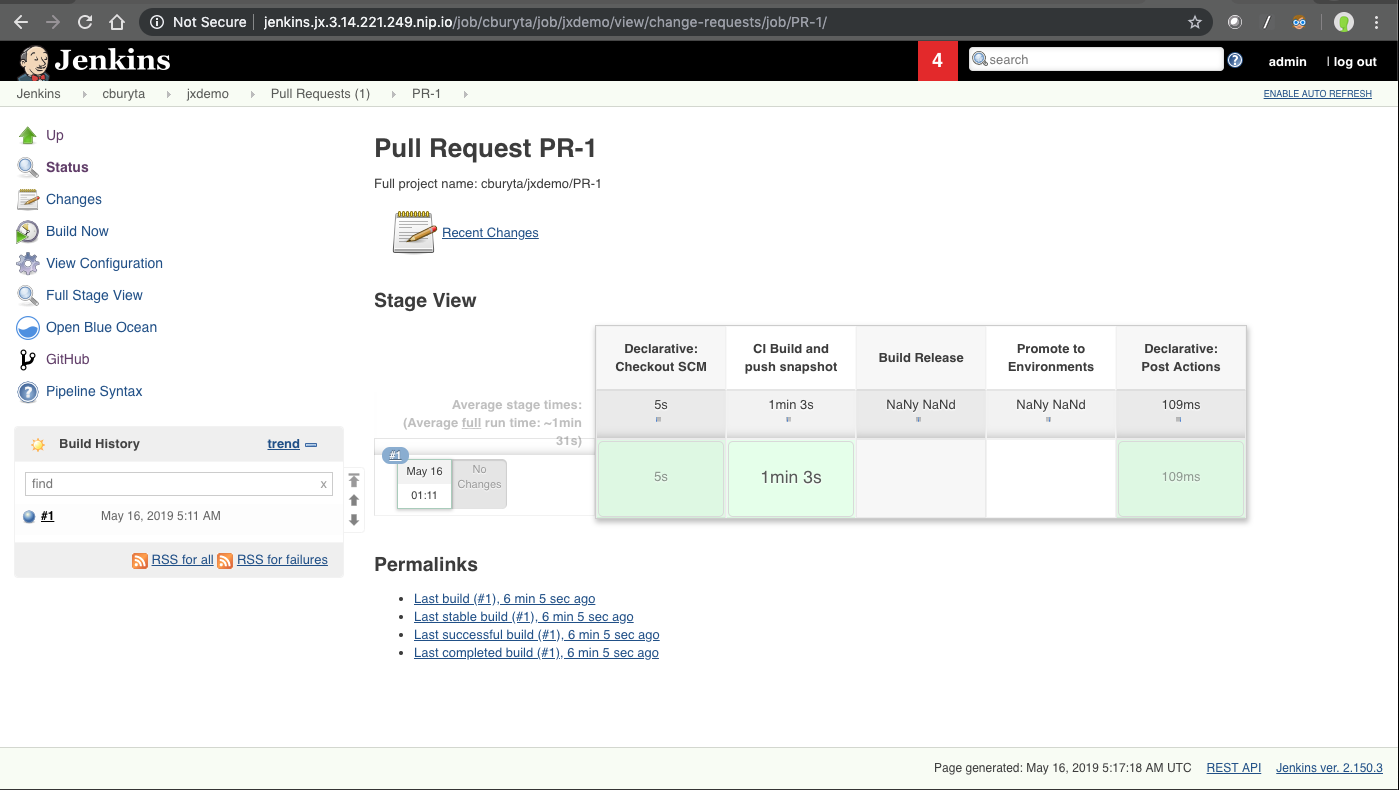
Notes
``` To import existing projects into Jenkins: jx import To create a new Spring Boot microservice: jx create spring -d web -d actuator To create a new microservice from a quickstart: jx create quickstart